
PixelLab
Screenshots
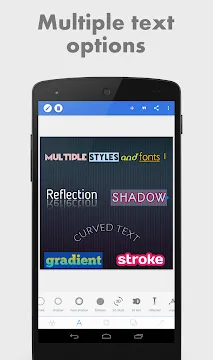
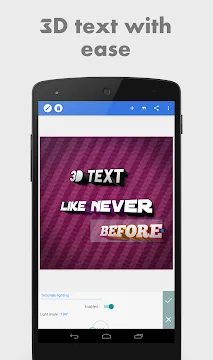
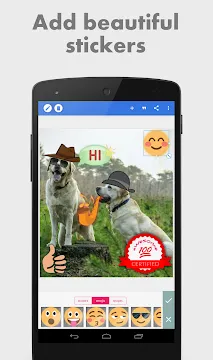
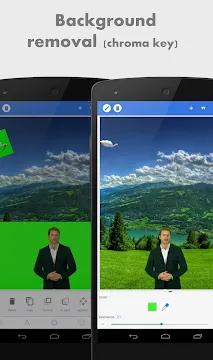
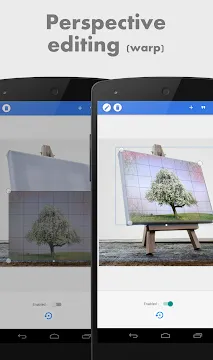
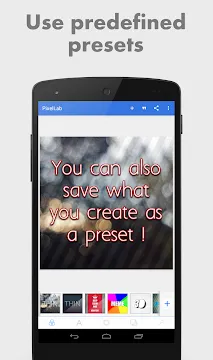
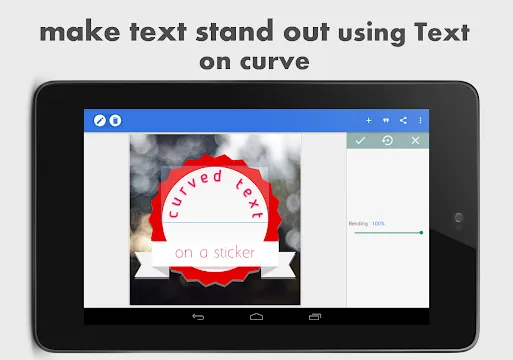
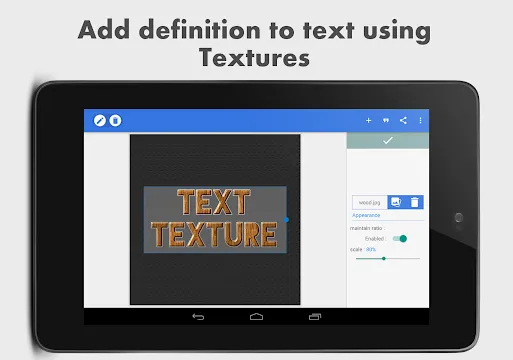
PixelLab for Android is a powerful and easy-to-use text editing app that lets you add stylish text, stickers, and shapes to your photos. It is a favorite choice among creators, students, and marketers who want to design quickly from their smartphones. The app provides a simple interface, yet it offers professional-level features for creating social media posts, logos, thumbnails, and promotional images.
With PixelLab, you can customize your text using dozens of fonts, 3D effects, and color options. You can also draw freely, import your own images, and add beautiful backgrounds. The app supports layers, making it easier to manage complex designs. Moreover, you can export your creations in high quality to share on platforms like Instagram, YouTube, or Facebook.
Create Stunning Graphics Easily with PixelLab for Android
Do you want to create eye-catching images for your social media, blog, or business? PixelLab for Android is a powerful, all-in-one graphic design and photo editing app. It turns your phone into a creative studio.
Furthermore, it is perfect for everyone. You do not need to be a professional designer. The tools are simple to learn but produce amazing results.
Key Features & Strengths: Why PixelLab Stands Out
PixelLab packs professional-level features into a user-friendly package. Here is a look at what makes it so powerful.
1. Advanced Text Editing
Go far beyond basic captions. PixelLab gives you total control over your text.
- Choose from a huge library of fonts.
- Create stunning 3D text effects.
- Add shadows, outlines, and colored backgrounds.
- Easily curve text or adjust letter spacing for a perfect look.
2. Powerful Photo Editing
Edit your pictures directly within the app before adding text or stickers.
- Adjust essential settings like brightness, contrast, and saturation.
- Apply beautiful filters with a single tap.
- This means you do not need multiple apps to get the perfect image.
3. Massive Object Library
Make your designs fun and engaging with a huge collection of visual elements.
- Find hundreds of pre-loaded stickers for every occasion.
- Add custom shapes and popular emojis.
- This library helps you express any idea visually.
4. Blending Modes & Layers
This is the cornerstone of professional editing. PixelLab uses a layer-based system.
- You can overlay text, images, and stickers independently.
- Use blending modes to create unique color and lighting effects.
- As a result, you can build complex, multi-layered designs with ease.
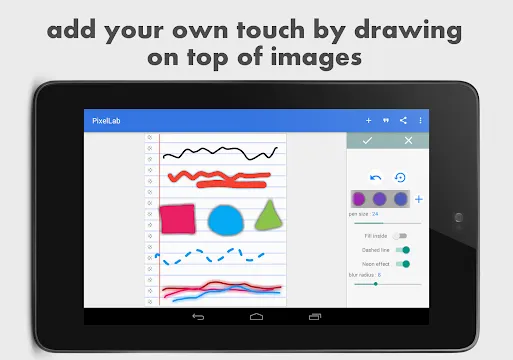
5. Drawing Tool
Unleash your inner artist with the freehand drawing tool.
- Make custom sketches directly onto your image.
- Annotate photos with arrows or circles to highlight important parts.
- It is perfect for adding a personal touch.
6. High-Quality Export
Your final creation will always look sharp and professional.
- You can save your work in high-resolution PNG or JPEG formats.
- Therefore, your graphics will look great on any platform, from Instagram to a printed flyer.
Who is PixelLab For? The Perfect Tool for Many People
PixelLab is incredibly versatile. It is designed for a wide range of users.
- Social Media Managers: Create fresh, on-brand content for Instagram stories, Facebook posts, and Twitter headers quickly.
- Small Business Owners: Design your own ads, promotional flyers, and product images without hiring a designer.
- Students & Bloggers: Make engaging presentation graphics, featured blog images, and Pinterest pins.
- Photographers: Add elegant watermarks, signatures, or text overlays to your photos before sharing them.
- Basically, anyone who wants to create cool, professional-looking graphics on their phone.
In conclusion, PixelLab combines powerful features with simple operation. It empowers you to bring your creative ideas to life. Download it today and start designing.
How To Download And Install PixelLab APK For Android
PixelLab is a powerful app for adding text and design to your photos. It is not always available on the Google Play Store in every region. Consequently, you might need to install it manually.
This guide will show you how to do it safely and correctly.
Why You Might Need the PixelLab APK
First, understand what an APK is. It is the file format used to install apps on Android. You may need the PixelLab APK for a few key reasons:
- Regional Restrictions: The app might not be in your local Play Store.
- Newer Versions: Sometimes, the APK version is more recent.
- Device Compatibility: Your specific phone model might be unsupported on the Play Store.
Next, let’s prepare your phone for the installation.
Step 1: Enable Installation from Unknown Sources
Your Android phone protects you by blocking installations from outside the Play Store. Therefore, you must change one quick setting.
- Open your phone’s Settings app.
- Scroll down and select Security or Apps & Notifications.
- Find and enable the option for “Install unknown apps” or “Unknown sources”.
- Grant this permission to your web browser (like Chrome or Firefox).
- This step is crucial. Without it, you cannot proceed.
Step 2: Download the PixelLab APK File
Now, you need to download the APK file.
- Open your Browser: Launch your preferred web browser, like Chrome.
- Find a Trusted Source: Visit Filetomob.com.
- Search for the APK: Type “PixelLab APK download” into the search bar.
- Download the File: Find the latest version and tap the “Download APK” button.
- Confirm Download: Your browser will show a warning about the file type. Tap OK or Download to proceed.
Your browser will now download the file. Wait for it to finish completely.
Step 3: Install the APK on Your Device
You have the file. Now you install the app.
- Open the File Manager: Go to your phone’s file manager app.
- Locate the File: Navigate to the Downloads folder.
- Start Installation: Find the PixelLab APK file and tap it once.
- Review Permissions: A screen will appear showing the required app permissions. Review them carefully.
- Tap Install: Press the Install button at the bottom right.
- Wait for Completion: Your phone will install the app. This takes only a moment.
- Finish Up: When finished, you will see “App installed.” You can now tap Open to start using PixelLab immediately.
You have successfully installed the PixelLab APK! Find the new PixelLab icon on your app list or home screen.
Important Security Reminders
To keep your device safe, always remember these points:
- Stick to Trusted Sources: Only download APKs from Filetomob.com.
- Check Permissions: Be wary if an app asks for unnecessary permissions.
- Keep it Updated: When you install via APK, you are responsible for updates. You will need to manually download newer versions.
Now, open PixelLab and start designing. You can add stunning text, 3D effects, and stickers to your images. The app is intuitive and fun to use.
Enjoy making your photos and stories stand out with your new creative tool.
Your PixelLab Guide: Mastering the Home Screen and Main Tools
Welcome to PixelLab! This powerful editor helps you create stunning graphics. Let’s get you started. We will first explore the home screen. Then, we will take a tour of the main editing interface.
1. Getting Started: The Home Screen & Your First Project
When you open PixelLab, the home screen is your starting point. From here, you can begin a new creation. You will see three main options for starting a project.
Here are your choices for a new project:
- Custom Size: This is a powerful option. Use it when you need a specific dimension for a platform like YouTube, Instagram, or a poster. You can type in the exact width and height in pixels.
- Photo: This is the most common and straightforward choice. It opens your device’s gallery so you can select a photo to edit. It automatically sets the project size to match your photo.
- Background: This option lets you start with a colored background. You can choose a solid color or a gradient. It is perfect for creating text-based quotes or simple designs from scratch.
Pro Tip: For most beginners, starting with a “Photo” is the easiest way to learn.
2. The Main Interface: A Tour of Your Toolkit
After you create a new project, you will see the main editing screen. The toolbar, usually on the left or bottom of the screen, holds all your creative tools. Understanding these icons is key to mastering PixelLab.
Let’s break down the essential tools you will use:
- Layers: This is arguably the most important icon. Think of layers as transparent sheets stacked on top of each other. Each piece of text, image, or shape sits on its own layer. The layers button opens a menu where you can see, reorder, and manage every element in your design.
- Text: Tap this to add text to your project. A text box will appear, and you can then change the font, color, and size.
- Photo: Use this to add more images to your design from your gallery. Furthermore, you can add stickers or clipart.
- Draw: This tool lets you draw or write freehand on your project. You can choose different brush styles and colors.
- Shapes: This icon adds geometric shapes to your canvas. You can insert lines, rectangles, circles, and speech bubbles. They are great for creating backgrounds for text or decorative elements.
- Settings: The settings or “more” menu provides additional options. For instance, you can adjust the project background, change the canvas size, or access save and share features.
In conclusion, start by experimenting with these core tools. First, create a new project with a photo. Then, try adding text and a shape. Finally, open the layers panel to see how everything stacks together. Happy creating.
Master Text in PixelLab: Create Stunning Graphics on Your Phone
PixelLab turns your Android device into a powerful graphic design tool. At its core is a robust set of text creation features. Let’s explore how you can make your words stand out.
A. Adding and Manipulating Text
First, you need to get your words on the screen. Fortunately, PixelLab makes this process simple.
Adding New Text
To begin, tap the ‘A’ icon on the toolbar. This action instantly creates a new text object for you to edit. You can then type your message directly onto the canvas.
Basic Text Manipulation
Once your text is added, you have full control over its placement and form. You can easily change its position by dragging it with your finger. Furthermore, use pinch-to-zoom gestures to resize it. You can also rotate text freely for a dynamic angle.
Advanced Color and Fill Options
Next, move beyond simple black and white text. PixelLab offers incredible fill options. For instance, you can use:
- Simple Colors: Choose any solid color from a full-spectrum palette.
- Linear Gradients: Blend two or more colors in a straight line.
- Radial Gradients: Create a circular color fade that emanates from a center point.
- Image Textures: Fill your text with a photo or pattern for a truly unique look.
B. The Power of Text Effects (Make Your Text POP!)
This is where PixelLab truly shines. Its powerful effects transform flat text into eye-catching graphic elements.
Stroke and Shadow for Clarity and Depth
These two effects are essential for making text readable over busy backgrounds. Firstly, the Stroke effect adds a solid outline around your letters. This makes your text stand out clearly. Secondly, the Shadow effect creates a soft drop shadow. This gives your text a sense of depth, making it appear to float above the canvas.
Create Impressive 3D Text
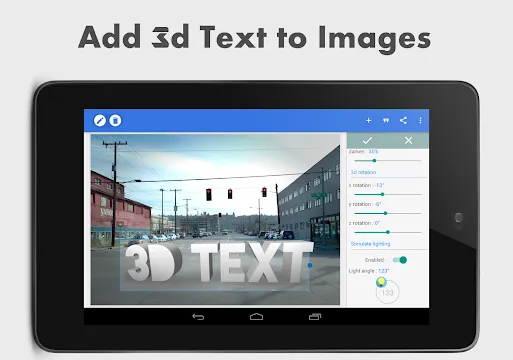
This is a standout feature. With the 3D text tool, you can instantly extrude your text. Consequently, it becomes a realistic, three-dimensional object. You can adjust the depth, light angle, and side color. Therefore, this effect is perfect for creating bold titles or logos that need to pop.
Emboss and Mask for Sophisticated Looks
Finally, explore more advanced styling options.
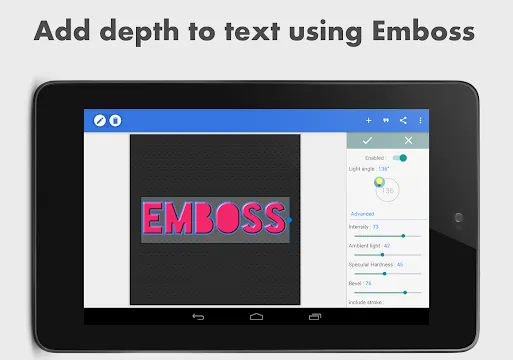
- The Emboss Effect creates a raised or engraved look on your text. It simulates the effect of letters being pressed into the canvas, adding a touch of elegance.
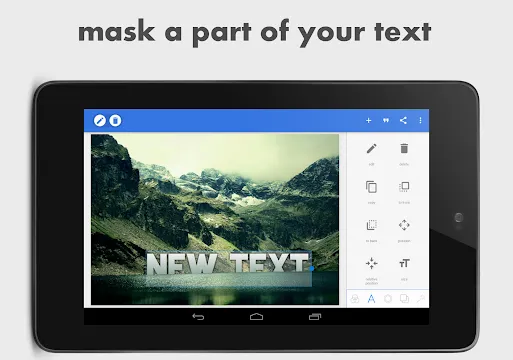
- The Mask Tool works differently. It allows you to cut sections out of your text. For example, you can use an image to “mask” your text, revealing the picture through the letter shapes.
In conclusion, PixelLab gives you professional-level typography control right in your pocket. By mastering these text tools, you can create stunning graphics for social media, posters, or videos with ease.
C. Font Management: Finding the Perfect Style
The right font sets the tone for your entire design.
- Built-in Library: PixelLab includes over 100 internal fonts. Therefore, you have plenty of styles to choose from right away.
Crucial Tip: Using Custom Fonts
Many designers need a specific brand font. Fortunately, PixelLab lets you import custom fonts (.ttf or .otf files). Here is a simple guide:
- Download your desired font file to your phone.
- Open PixelLab and tap the ‘A’ icon to add text.
- Go to the font selection menu.
- Click the ‘+’ icon at the top.
- Navigate to and select your downloaded font file.
The app will install it, and you can now use it just like any built-in font. This powerful feature unlocks endless creative possibilities for your projects.
Start combining these tools today. You will quickly create eye-catching graphics for social media, memes, and presentations.
PixelLab for Android: Image Manipulation and Compositing
PixelLab turns your Android device into a powerful design studio. It is perfect for creating social media graphics, logos, and custom images. Let’s explore its key features.
First, we will start with adding core design elements.
A. Working with Shapes, Stickers, and Emojis
Build your designs from the ground up. PixelLab offers a rich library of components.
Add Various Design Elements
You can easily insert circles, squares, and speech bubbles. Furthermore, you have access to a wide range of custom shapes. Simply tap the “Shapes” icon to browse the collection.
Create Custom Logos and Frames
Next, try layering these elements for more complex designs. For instance, place a circle behind your text to create a badge. Similarly, layer squares to build a unique photo frame.
Here is a simple process to follow:
- Start by adding a large square as your base.
- Then, place a smaller, different-colored square on top.
- Finally, add your text or logo in the center.
This technique quickly creates professional-looking logos and visual frames.
B. Importing and Combining Images
Move beyond basic shapes. PixelLab lets you blend multiple images into one composition.
Import Images from Your Gallery
Begin by tapping the “Photo” tool. This opens your device’s gallery. Then, select the image you want to use. It will appear directly on your canvas, ready for editing.
Use Background Removal for a Transparent PNG
This is a key tool for advanced editing. The “Background Removal” feature instantly makes a solid background transparent.
For example, you can take a picture of a logo on a white wall. The tool removes the wall, leaving only the logo. This is incredibly useful for creating PNG stickers or isolating objects to use in other projects.
C. Background and Scene Adjustments
Set the perfect stage for your composition. Adjust the backdrop and apply final touches.
Change Your Canvas Background
You are not stuck with a white canvas. You can change it to any solid color. Alternatively, create a beautiful gradient or even import a full photo as your background.
Apply Full-Image Effects
Finally, use filters and adjustments to finalize your work. Apply a Vignette effect to darken the edges and draw focus. Alternatively, add Noise for a gritty texture. You can also fine-tune the Brightness and Contrast for a perfect finish.
D. Layer Management for Organized Designs
Think of your design as a stack of papers. Each element, like text or a shape, sits on its own layer. The “Layers” panel lets you control this stack.
Understanding the Layers Panel is simple:
- Stacking: Drag a layer up or down to change what appears in front.
- Locking: Lock a layer to prevent accidental moves while you edit others.
- Hiding: Tap the eye icon to make a layer invisible without deleting it.
In conclusion, PixelLab combines simplicity with powerful features. You can create stunning, professional-grade images directly on your Android phone. Start designing today.
PixelLab for Android: Exporting and Optimizing Your Workflow
You have just created a fantastic design in PixelLab. Now, you need to save and share it. A smart export process ensures your work looks professional everywhere.
First, you must decide how to save your file. PixelLab gives you two main options.
A. Saving Your Work the Right Way
You can either save your project for later edits or export it as a final image.
Saving as a Project
Always save your work as a PixelLab project first. This step is crucial. It keeps every layer, text box, and effect intact. Consequently, you can re-open the file later and make any change easily.
Exporting as an Image
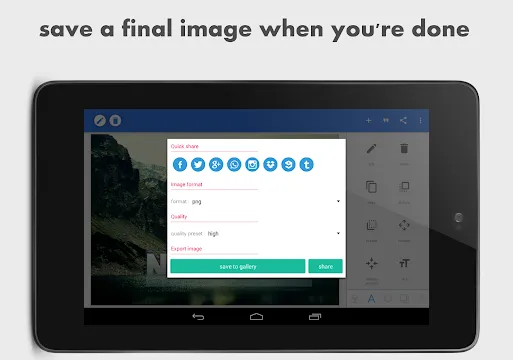
When your design is ready to share, you export it. Simply tap the “Share” icon (the upload arrow) in the top right corner. This action converts your project into a standard image file like PNG or JPEG.
B. Choosing the Perfect Image Format
Choosing the right format is key for quality. PixelLab offers PNG and JPEG.
Here is a simple guide:
- Use PNG for designs with transparency. For instance, this is perfect for logos, stickers, or any graphic you want to place over another background without a white box.
- Use JPEG for standard photos and social media posts. This format is ideal for image-heavy designs, like memes or photo edits, because it creates smaller file sizes.
Don’t Forget About Quality
Before you export, always check the quality setting. For the best results, especially for high-resolution posters or prints, set the quality to “Ultra.” This ensures your final image is sharp and clear.
C. Sharing Your Masterpiece Instantly
Finally, it is time to share your creation. PixelLab makes this very easy.
After you export, the app shows quick-share buttons. You can use these to post your image directly to social media platforms like Instagram, Facebook, or WhatsApp. Therefore, you can go from finishing your design to posting it online in just a few taps.
By following this simple workflow, you can protect your editable projects and share stunning, high-quality images every time.
Frequently asked questions about PixelLab for Android
How Do I Add Text to My Image?
This is the core function of PixelLab. First, open your background image. Then, simply tap the “Text” button at the bottom of the screen. A new text layer will appear. You can now type your message and customize it using the menu.
Can I Use My Own Fonts?
Absolutely! PixelLab allows you to add custom fonts. Tap on your text, then select the font option (usually displayed as “Tt”). Next, click the download icon in the top-right corner. This will take you to a library where you can browse and install many free fonts directly into the app.
Where is the Export or Save Button?
Look for the share or export icon in the top-right corner of the screen (it often looks like an arrow pointing right). Tapping this will bring up the save menu. Here, you can choose the image quality and file format before saving to your gallery.
How Do I Outline Text?
Outlining text makes it pop. Select your text layer. Then, tap the “Style” option (the “A” icon). From there, you will find the “Stroke” setting. Adjust the width and color to create a perfect outline around your letters.
What is the Difference Between Shadow and Background?
This is a common point of confusion.
- Shadow: This adds a blurred, offset effect behind your text characters, creating a sense of depth.
- Background: This places a solid-colored shape (like a rectangle or circle) behind your entire text box, making it easier to read over busy images.
How Can I Make a 3D Text Effect?
PixelLab’s 3D text feature is impressive. First, type your text. Then, go to the “Style” menu and find the “3D” option. You can adjust the depth, color, and light angle to create various three-dimensional looks.
Why Are My Images Blurry After Exporting?
This usually happens because of low export quality. Always ensure you select the highest available quality (like “HD” or “100%”) when using the save/share menu. Additionally, start with a high-resolution background image for the best results.
The App Crashes When I Open It. What Can I Do?
This can be frustrating. Try these steps:
- First, close the app completely and reopen it.
- Then, check for updates in the Google Play Store.
- If the problem continues, clear the app’s cache from your device’s settings.
- Finally, as a last resort, uninstall and reinstall the app (remember to save your projects first).
How Do I Move or Resize an Object Precisely?
For precise control, use the on-screen sliders. After selecting a layer (text, sticker, or shape), look for the position (X/Y) and scale sliders. These let you make fine adjustments by number, ensuring perfect alignment.
I Lost My Work! How Do I Recover a Project?
PixelLab has an auto-save function for projects. To reopen a recent project, start a new design and look for a “Recover” or “Recent” option on the main canvas screen. For important work, always use the “Save as Project” option to create a permanent file you can reload anytime.
Can I Add Multiple Photos to One Design?
Yes, you can. Use the “Photo” tool to add your first image. Then, use it again to add more. Each photo becomes its own layer, which you can resize, rotate, and position independently.
Is There a Way to Align Objects Perfectly?
While PixelLab doesn’t have a full alignment grid, you can use the center-lock feature. When moving an object, guide lines will appear. These lines show you when the object is perfectly centered on the canvas or aligned with other objects.
Does PixelLab Have a Premium Version?
The core app is free with ads. However, an in-app purchase is available to remove advertisements and sometimes unlock additional premium assets. This is a one-time purchase, not a subscription.